Setting Up Hours of Operation
The workgroups in a call center perform different types of work and have difference service levels.
What do you want to do?
Tasks in this Topic Include:
- Access Hours of Operation
- Set Business Week Ending
- Set Hours of Operation by Weekdays
- Set Open / Close Days
Related Tasks:
- Create Sites
- Setting Up Hours of Operation
- Create Skills
- Applying Service Levels
- Create Skill Teams
- Applying Non-Call Parameters
- Setting Up Exception Codes
- Import Work History
Access Hours of Operation
- Select Setup from the left-navigation menu.
- Select Workgroups.
- Select the workgroup you want to work with from the Workgroup drop-down menu.
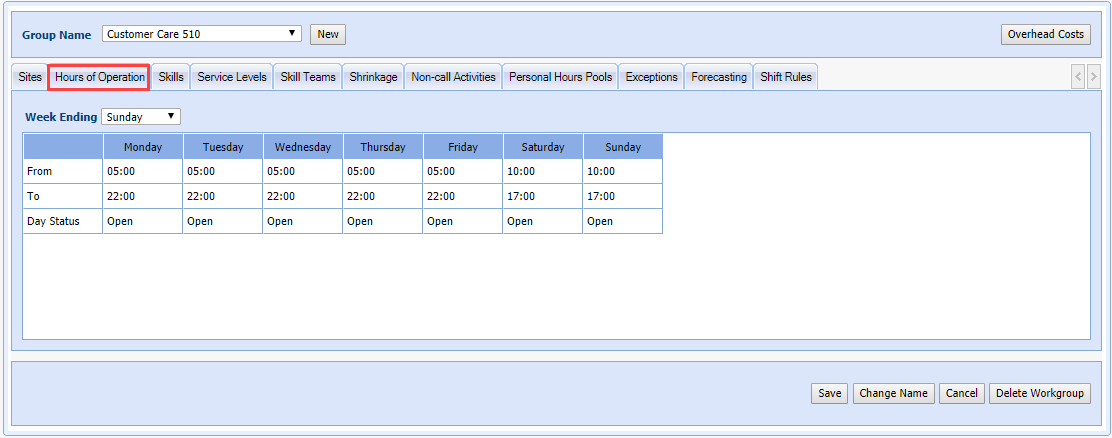
- Select Hours of Operation.
Set Business Week Ending
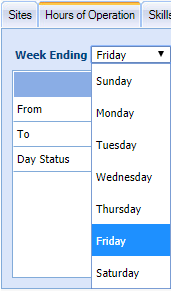
The business week ending day defines the working weekdays for the workgroup. For instance, "Week Ending = Sunday" means that the workgroup operates from Monday to Sunday. Selecting the business week ending day means that the workgroups business week begins on the day following the selected day, and is the first day for the system to receive data for the business week.
- Select the ending day of the week from the Week Ending drop-down menu.
- Select Save
Set Hours of Operation by Weekdays
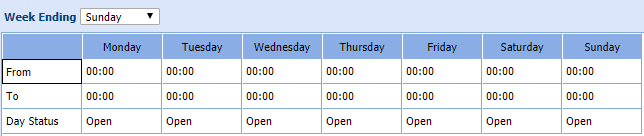
Hours of Operation defines the working hours for an activated workgroup. The hours of operation selected will ensure that Rosters, Forecasts, and Call History Screens will reflect the time frame. Monet sets the hours of operation by weekdays to allow for different working hours for different weekdays.
- Select Setup from the left-navigation menu,
- Select Workgroups.
- Enter From time for the respective day(s).
- Enter To time for the respective day(s).
- Select Save.
Set Open / Close Days
This feature allows you to specify the Open and Closed days for a workgroup. When shifts are staffed, the days that have been defined as closed days will not be used for staffing. Only the days defined as open days will be used, and the employee list will require entries for each open day.
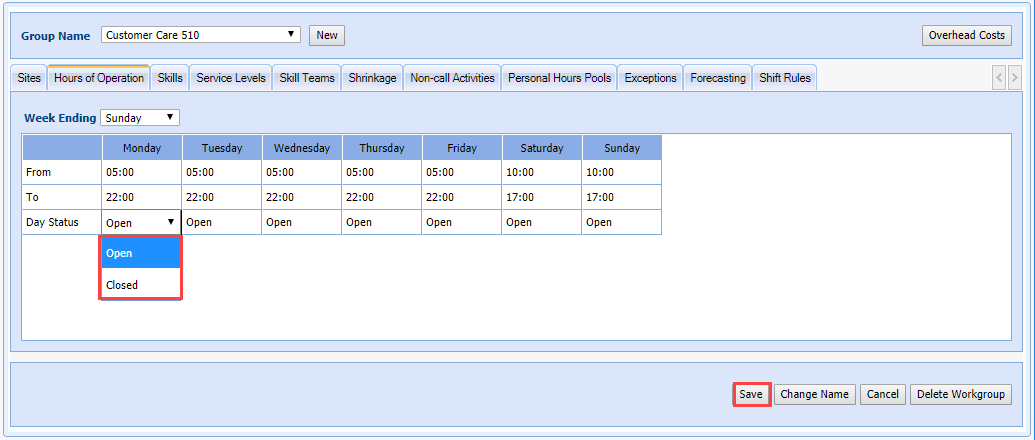
The Days Open/Closed feature provides details of days off and working days. The first rows indicate From and To times of each day of the week and the Day Status row shows the status corresponding to that day of the week.
- Select the Hours of Operation tab.
- Select either Open or Closed from the drop-down menu as required from the Day Status row.
- Select Save.